Where are you starting?
Pick the language you're learning, the language for explanations, and your level. Every page is rewritten to fit, and you can change this any time.
View
Page
Line spacing
Tap a word for its meaning. Press and hold to select a phrase for a mini-lesson. Highlighted words are above your level.
purple words other readers savedblue passages with lessons other readers made — tap lesson to open
Your shelf
Open a book to carry on where you stopped.
The Folio library
Classics and children's books ready to read straight away, picked by the Folio team. All public domain.
Search Project Gutenberg
Community uploads
Books other members uploaded and chose to share. Each one passed our personal-information and copyright check; if you spot a problem, contact us.
Add a book from a file
⚠ Do not upload personal information.
Books you upload can be shared with other Folio readers once they pass our automatic check. Never upload documents that contain personal details about you or anyone else — names together with addresses, phone numbers or email addresses, ID, passport, BSN or bank numbers, medical or financial records, or private letters and messages.
Only upload texts you have the right to share: public-domain classics, or writing you own.
Upload terms and disclaimer
By uploading you confirm that you have the right to share the text and that it contains no personal information about anyone.
Uploads are checked automatically, and may be checked by our team, before anyone else can see them. Until that check is passed, an upload is visible only to you. If you choose to keep an upload private, or are unsure who holds the rights, it is never shared.
Folio takes no responsibility for personal information that a user shares improperly, nor for copyrighted material that a user shares. Responsibility for an upload rests with the member who uploaded it.
When copyrighted books or other content, or personal information, are uploaded, we will do our best to detect and remove them, but we cannot guarantee that inappropriate content shared by members of our community will always be detected or removed.
To report an upload that infringes your rights or contains your personal information, contact us and we will review it promptly.
Load a plain-text (.txt) or EPUB file, for example from Project Gutenberg or Standard Ebooks. Gutenberg headers and licence footers are removed automatically. You can also paste text.
Classics to fetch
Whole collections by language
Your words
Saved words come back on a spaced schedule: a word you know waits longer, a word you miss returns soon.
All saved words
Messages
Practise with other readers: find a language partner who speaks what you're learning, and write to each other.
Sign in on the Account tab to use messaging.
Turn on messaging
Messaging is off until you turn it on. Other members only see the display name you choose, never your email. You can block anyone and report any message; reports go to the Folio team.
Members open to messages
Choose a conversation, or find a language partner.
Lessons
Every mini-lesson, conjugation drill and checkpoint you've opened, newest first.
Your lessons
How to use Folio
Folio teaches a language through real books. Every page is rewritten at your level, and anything you don't understand turns into a short lesson. This guide walks through every part of the app.
- Pick your language and level. Folio asks the first time you open it.
- Open a book from the Library, or keep reading the sample story.
- Tap Prepare this page. The page appears in the language you're learning, at your level.
- Tap words you don't know. Save the useful ones; Folio brings them back for review.
1 · Choose your languages and level
The first screen asks three things: the language you're learning, the language for explanations (meanings, grammar notes, lessons), and your level.

| Level | You can… | What Folio does to the page |
|---|---|---|
| A0 | recognise a few words | Retells each paragraph in 1–3 very short sentences |
| A1 | use simple everyday phrases | Short sentences, the 1,000 most common words |
| A2 | handle routine topics | Common words, simple tenses, the full story |
| B1 | follow clear stories | Everyday vocabulary, long sentences split |
| B2 | read most novels with effort | Modern wording, every detail kept |
| C1 | read complex texts | Close to the original; only obsolete words updated |
| C2 | read virtually anything | A full literary translation |
| Native | — | No adaptation |
Not sure? Pick one level lower than you think. Reading should feel easy enough to keep going.
2 · Read a page
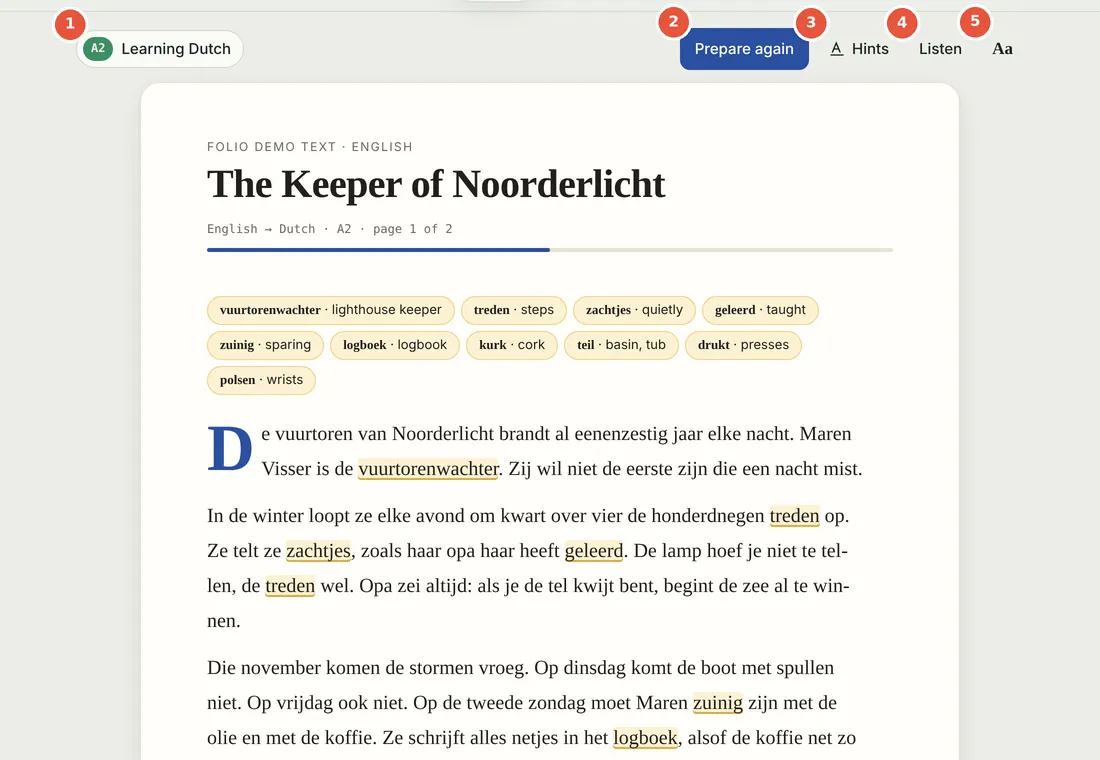
- Level badge. Shows the language you're learning and your level. Tap it to change either.
- Prepare this page. Rewrites the page in your language at your level. Prepared pages are saved, so you only wait once. Once a page is ready the button reads Prepare again, for a fresh version.
- Hints. Marks the words on this page that are above your level (see below).
- Listen. Reads the page aloud with your device's voice. Tap again to stop.
- Aa. Opens reading settings: languages, level, view, text size, page colour and spacing.
Move through the book with Previous and Next at the bottom of the page, or type a page number into the box between them. Folio remembers where you stopped in every book.
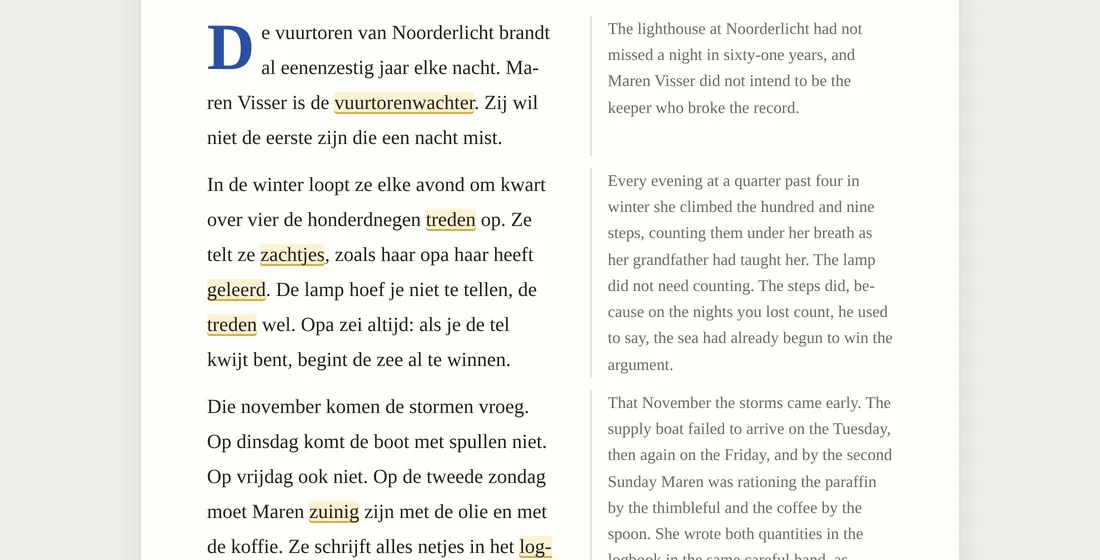
Three ways to view a page (in Aa → View):
- Learning: only the text in the language you're learning. Best for practice.
- With original: your version and the original side by side, paragraph by paragraph. On a phone the original sits under each paragraph.
- Original: the book as the author wrote it.
3 · Vocabulary hints
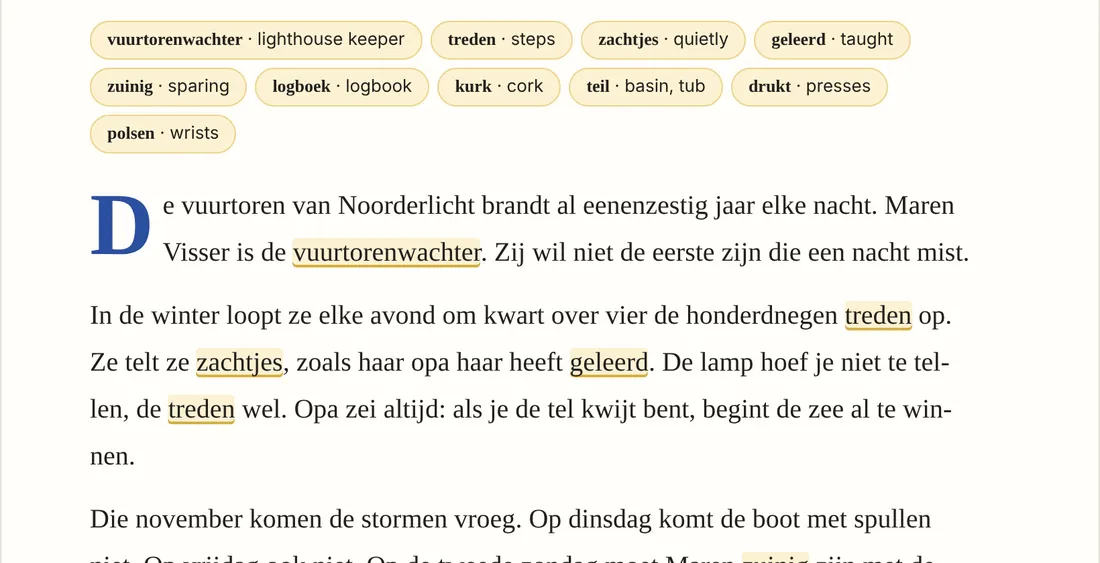
After a page is prepared, Folio picks the 6 to 12 words on it that are most likely new to you at your level. They appear as chips above the text and are highlighted in the page. Tap a chip or a highlighted word to see what it means.
4 · Tap any word
Tap any word, in your version or in the original, and a panel slides up with its meaning in that sentence.

- The word and its dictionary form, with the part of speech.
- Meaning here: what it means in this sentence, not just in general.
- Save word adds it to your Words deck for review.
- Full lesson explains the word in more depth, with examples and a quiz.
- Conjugation (verbs only) shows how the verb changes.
Close the panel with Close, or press Esc on a keyboard.
5 · Highlight a phrase for a mini-lesson
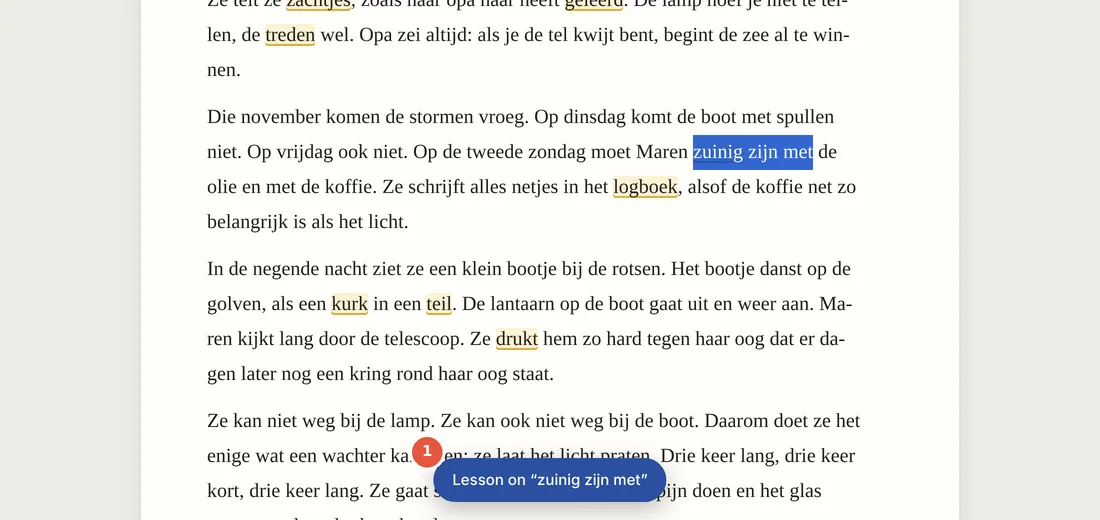
Select a few words: drag across them with a mouse, or press and hold on a phone and drag the handles. A Lesson on “…” button appears at the bottom of the screen. Tap it for a lesson on exactly that phrase.
6 · Lessons, conjugations and checkpoints
Every lesson follows the same pattern: what the phrase means, how its parts fit together, the one grammar point worth knowing, the verb conjugated where there is one, new example sentences, and a short quiz. Tap an answer in the quiz to see whether you were right and why.

Grammar checkpoints appear at the end of a page every few pages. They gather the verbs you actually met while reading and practise one tense with them.

Every lesson you open is kept on the Lessons tab, so you can come back to it later.
7 · Reading settings
Tap Aa to make the page comfortable.

- Text size: drag the slider; the page updates as you go.
- Page: Auto follows your device's light or dark mode. Paper and Sepia are easier on the eyes in daylight; Night is for reading in bed.
- Line spacing: Airy gives long sentences more room.
8 · Your library

- Continue reading takes you straight back to the page you were on.
- Your shelf lists every book you've opened, with your page number.
- Invite friends (Plus): share your personal link from the Account tab. For every 5 friends who create an account with it and start reading, you get a free month of Plus — your next payment moves a month later (up to 12 free months a year).
- Messages: write to other readers to practise. It's off until you turn it on (you need a display name and to be 18 or older). Find a language partner lists members who chose to receive messages; "language exchange match" means they speak what you're learning and learn your language. Others only see your display name. Use Block to stop someone contacting you and Report on any message to alert the Folio team. Your messages are included in "Download my data" and deleted with your account.
- Level words: under the page, Highlight words for level marks the words a learner needs at that CEFR level (A1–C2) with a teal underline, and that level's verbs with a double underline. On a computer, rest the mouse on a highlighted verb to see its conjugation; on a phone, tap it and choose Conjugation. It starts at your own level; choose Off to hide it.
- Shared with other readers: a page someone prepares in a language and level is ready for everyone after them (the Read in list shows which are ready). Words other readers saved are underlined in purple, and passages where they made a mini-lesson are marked in light blue with a lesson badge: tap to read it and add it to your own. Sharing is anonymous (counts only, never names), nothing from private uploads is shared, and you can switch it off on the Account tab.
- The Folio library lists classics and children's books chosen by the Folio team. Choose the language to read it in under Read in (French, Dutch, English…) and tap Add to shelf: no searching needed, and they never count toward the free plan's book limit. Books marked ready: A0–C2 have their opening pages prepared at every level, so they open instantly.
- Search Project Gutenberg (signed in) finds free classics by title or author. Tap Add; the book is ready on your shelf in under a minute.
- Add a book from a file: load a .txt, .epub or .html file, or paste text. Choose the book's language so Folio translates from the right one. Folio first checks the text for personal information and copyright notices, then asks you a few questions about the rights. Your answers are saved with your account (see My upload declarations). Never upload personal information: uploads you share can be read by other members.
- Who can read an upload: only you, until our check is passed. Shared uploads then appear under Community uploads for everyone. Choose Keep it private to never share it.
- EU: check rights on a book means its author died less than 70 years ago. It is free to read in the US but may still be protected in Europe.
9 · Words and spaced review
Every word you save goes to the Words tab with the sentence you found it in. When a word is due, it appears as a card: try to remember the meaning, tap Show meaning, then rate yourself.

| You tap | The word comes back |
|---|---|
| Again | in 10 minutes, and starts over |
| Good | one step later: after 1, 3, 7, 16, then 35 days |
| Easy | two steps later |
10 · Plans and subscription
| Free | Plus | |
|---|---|---|
| Price | €0 | €7,99 a month or €59 a year |
| AI actions a day | 15 | 300 |
| Books on your shelf | 2 open | Unlimited |
| Every feature | Yes | Yes |
An AI action is preparing a page, a word lookup or a lesson that hasn't been made before. Pages someone has already prepared at your level, and everything you've opened before, don't count.
To upgrade, go to Library → Plans, choose yearly or monthly, and pay with iDEAL, card or PayPal. Plus switches on within a minute of paying.

To cancel, tap Cancel renewal on the Plus card (tap twice to confirm). You keep Plus until the end of the period you've paid for.
When Plus ends. Folio checks your membership every time you use an AI feature, and again every hour. When the paid period has ended (with 3 days' grace for late bank payments), your account moves to Free automatically. Nothing is deleted:
- All your books stay on your shelf. The two you read most recently stay open; the others show a lock.
- Your saved words, review schedule, lessons and the page you were on in every book are kept.
- Resubscribe at any time and every book unlocks immediately, exactly where you left off.

11 · Daily word scenes
Folio posts a picture every morning on its Facebook and Instagram pages: an everyday scene, such as a café, a train station or cycling in the city, with 10 objects labelled in the language you're learning. The link in each post opens that scene inside Folio with the full word list and a quick quiz.
12 · On your phone

Everything works the same on a phone. To select a phrase for a lesson, press and hold a word, then drag the selection handles.
13 · Your data
- Folio stores your email, your language settings, your shelf and reading positions, saved words and lessons. Nothing else.
- Book text and the phrases you look up are sent to an AI service to write pages and lessons. Your name and email are never sent with them.
- Under Library → Your account you can download everything Folio holds about you, or delete your account. Deleting cancels any subscription first; payment records are kept for 7 years because Dutch tax law requires it.
14 · Troubleshooting
- “Prepare this page” does nothing or shows an error.
- Check you're signed in (Library). If it says the daily allowance is used up, Free resets at midnight UTC; Plus has 300 actions a day.
- A sentence reads oddly.
- Tap Prepare again for a fresh version, or switch to With original to compare.
- Listen has no voice or the wrong accent.
- Read-aloud uses voices installed on your device. Add the language's voice in your phone or computer's speech settings.
- A book shows a lock.
- You're on the free plan with more books than it holds (3, not counting the Folio library). Remove a book, or resubscribe to Plus to unlock them all.
- The level feels too easy or too hard.
- Folio notices: after five pages with almost no lookups, or with lots of them, it suggests a level up or down above the page. You can also change it any time in Aa.
Where the free texts are
Royalty-free books and articles you can load into Folio. Translating a text makes a derivative work, so “no derivatives” licences rule a source out.
Public domain is per country. Project Gutenberg follows US law. In the Netherlands and the rest of the EU most works stay protected until 70 years after the author’s death. Check the author’s death year before building a commercial product on a title.
Books
Articles and open-access research
Audio, for read-along
Licence notes are a starting point, not legal advice. Re-check each source’s terms before commercial use.